Play with a gamepad
A free module for the uaRO client: walk with the stick, fight with the buttons, cast skills straight from the hotkey bar. Keyboard and mouse keep working alongside — and the mouse gets better too.
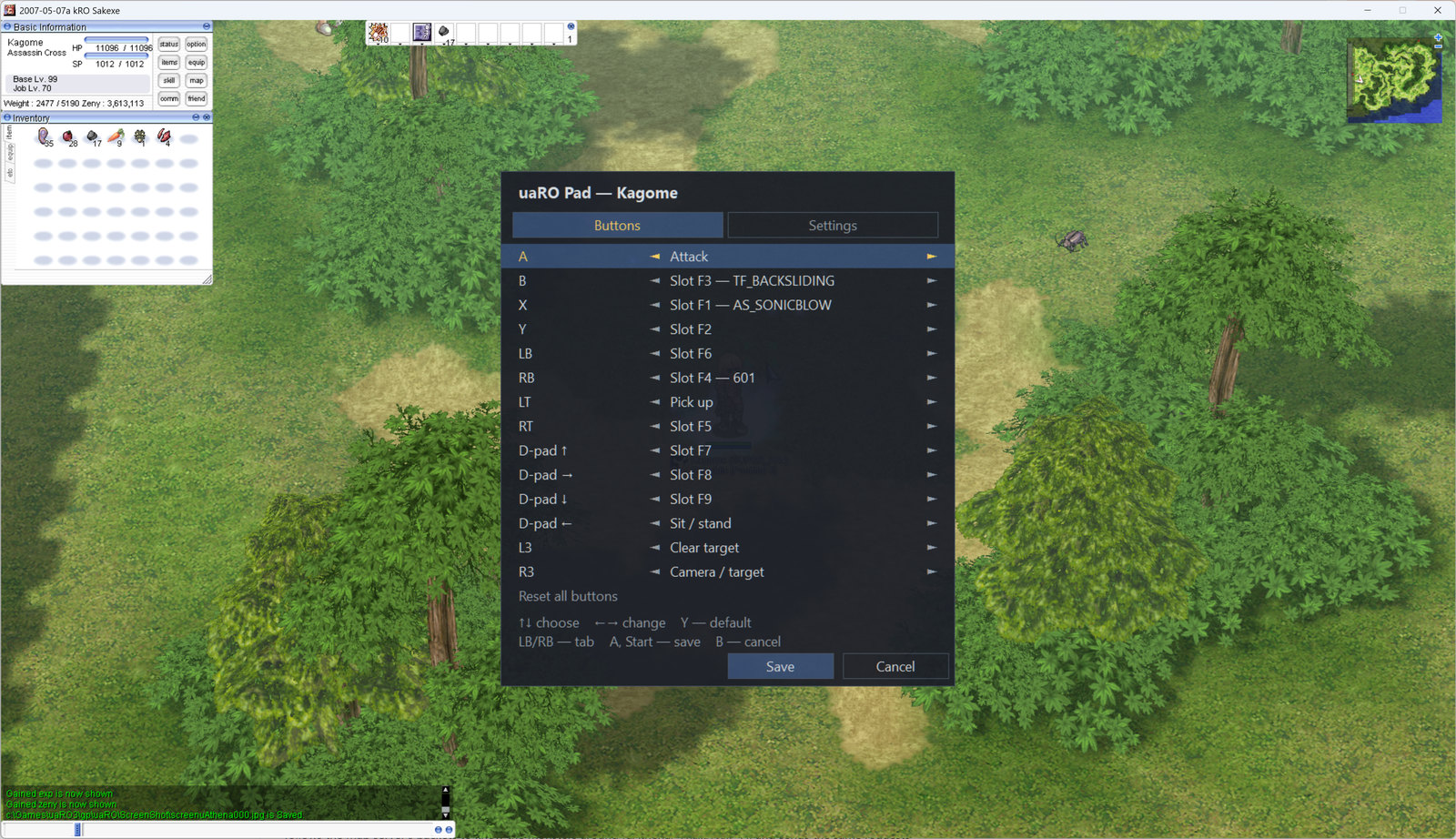
Everything the gamepad does
Walking
The left stick walks in any direction, relative to the screen — the camera turn included. Let go and the character stops on the spot.
Fighting
A attacks the nearest monster on the screen; hold A to clear a pack one by one. The right stick picks a monster in its direction. A mark only you see shows the target.
Skills from the hotkey bar
Any of 14 buttons fires any of 27 slots (F1–F9, three rows). The module aims itself: at the target, on the ground, traps two cells ahead, buffs on yourself. Potions too.
Camera
R3 turns the right stick into a camera stick: turn like with the right mouse button, zoom in and out. Walking and aiming follow the camera.
In-game menu
Start opens the menu over the game: a button layout per character, settings, Ukrainian, Russian or English. The game keeps running.
A better mouse
The cursor is never captured and follows Windows exactly; clicks and the wheel reach the game only over its window; normal cursors over the title bar.
Window and mouse buttons
Borderless window, the cursor locked inside on request, side mouse buttons as F1–F9, no CPU load while the game is in the background.
Safe
One file next to the client, nothing changed in the game. On any error the module steps aside; Back switches it off. A readable log explains every decision.
Default layout
Every button can be reassigned in the Start menu, for each character separately.
| Button | Action |
|---|---|
| Left stick | walk |
| Right stick | pick a monster in that direction (camera mode: turn and zoom) |
| A | attack the nearest monster; hold to go on to the next |
| X, Y, B | hotkey slots F1, F2, F3 |
| RB, RT | slots F4, F5 |
| LB | slot F6 |
| D-pad ↑ → ↓ | slots F7, F8, F9 |
| LT | pick up items |
| D-pad ← | sit / stand |
| L3 | clear the target |
| R3 | right stick: targets ↔ camera |
| Start | the menu |
| Back | module off / on |
Requirements
| What | Needed |
|---|---|
| Client | uaRO (uaRO.exe) from the download page |
| System | Windows 7, 10 or 11 |
| Controller | Xbox 360 / One / Series or any XInput controller |
| Other controllers | PlayStation, Switch — through DS4Windows or a similar tool |
| Size | ~0.6 MB |
Five minutes, no installer
- 1
Download the package
The archive holds dinput.dll, the uaro-pad.ini settings and the guide in three languages.
- 2
Open the client folder
Close the game and open the folder with uaRO.exe (right-click the game shortcut → Open file location).
- 3
Put ROExt aside
If the folder already has a dinput.dll, rename it to dinput.dll.bak: the module replaces it.
- 4
Copy two files
Put dinput.dll and uaro-pad.ini next to uaRO.exe.
- 5
Unblock the file
Only if Windows asks: right-click dinput.dll → Properties → tick Unblock.
- 6
Connect the controller
Plug in the controller and start the game as usual.
- 7
Press Start
The menu opens over the game: choose your language in Settings and check the buttons.
Updating
Close the game and replace only dinput.dll — your settings and layouts stay in uaro-pad.ini and uaro-pad-binds.ini.
Removing
Delete dinput.dll and the uaro-pad files from the client folder; rename dinput.dll.bak back if you had ROExt.
Full package
For a first install: dinput.dll, settings and the guide
For updating: your settings stay as they are
uaRO Pad 0.5.1 · Free, open source (MIT)
About the gamepad
Is it allowed on uaRO?
Yes. uaRO is a bot-friendly server, and the module sends only the requests the client itself sends when you play with the mouse.
Which controllers work?
Xbox 360, Xbox One, Xbox Series and any controller Windows sees as XInput — wired, through the Xbox adapter or Bluetooth. PlayStation and Switch controllers work through DS4Windows or a similar tool.
Do I still need the keyboard and mouse?
For menus, NPC dialogues and chat — yes. Walking, fighting, skills, potions and picking up items are on the gamepad.
Does it change the game client?
No. It is one file next to uaRO.exe; delete it and the game is exactly as it was.
The antivirus complains about dinput.dll
The module hooks the game's input, which some antiviruses dislike. Add the client folder to the exceptions; the source code is open on GitHub.
I play with the mouse only — is it any use to me?
Yes: the cursor stops being captured and follows Windows exactly, clicks and the wheel no longer leak from other windows, the window can go borderless, and the side mouse buttons can press F1–F9.
Where are my settings kept?
In uaro-pad.ini and uaro-pad-binds.ini in the client folder. The Start menu edits them; the comments in the file stay untouched.